


 Liam, Sophie
 and 39,000+ others enjoy our Products!
PixelDrive 64GB Retro Game Console with 2 Wireless Controllers – Over 20,000 Classic Games & 4K HDMI Output
PixelDrive 64GB Retro Game Console with 2 Wireless Controllers – Over 20,000 Classic Games & 4K HDMI Output
Fast & Free Delivery Australia Wide
Risk Free: 30 Day Money Back Guarantee
Couldn't load pickup availability
Relive Gaming’s Golden Era – All in One Device
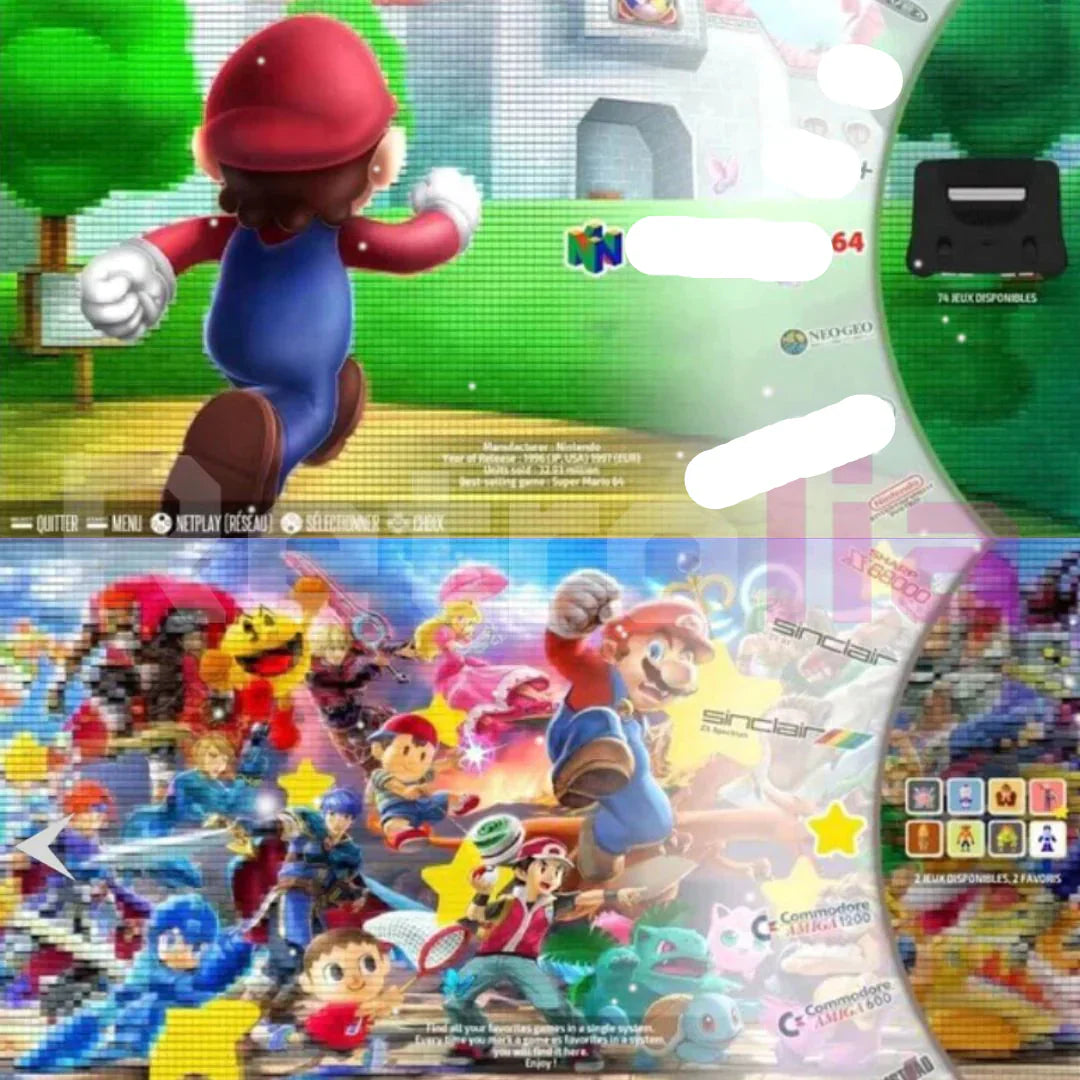
Step into nostalgia with the PixelDrive 64GB Retro Console, featuring over 20,000 legendary titles from the ‘80s, ‘90s, and early 2000s. From Mario to Pokémon, relive the magic of your childhood favourites on a single plug-and-play system that supports 4K HDMI output.

Why Gamers Love PixelDrive:
Massive Game Library
With 20,000+ pre-installed classics, you’ll rediscover every title you loved—Donkey Kong, Mario, Zelda, Sonic, Mortal Kombat, Pokémon, and more—across multiple platforms in one compact drive.
Instant Setup – Just Plug & Play
No internet. No subscription. Just connect to your TV, plug in power, pair the 2 wireless controllers, and you’re ready to go. Enjoy hassle-free gaming on any HDMI-compatible screen.
Multiplayer Fun with Wireless Controllers
Game with friends or family using the included 2 wireless controllers, offering responsive controls and total freedom without tangled wires or input lag.
Add More Games Easily
Want to add more games? Just remove the micro SD card, insert into a PC, download your desired ROMs, and drag-and-drop into the correct folder. It’s that simple.

What’s in the Box:
1 x PixelDrive 64GB Retro Gaming Console
2 x Wireless Controllers
1 x HDMI Cable
1 x Power Cable
1 x Micro SD Card (64GB with pre-installed games)
1 x User Manual


How to Set It Up (5 Easy Steps):
1- Connect the PixelDrive to your TV/monitor using the HDMI cable.
2- Power it up via your TV's USB port or any power source.
3- Plug in the wireless controller receiver.
4- Insert batteries and switch on your controllers.
5- Select the correct HDMI input on your TV—and you’re in!



Aussie Care Pro Commitment
Your comfort, convenience, and confidence—guaranteed.
- 30-Day Satisfaction Guarantee – Love it or return it, no hassle.
- Free Tracked Shipping – Fast, secure delivery to your doorstep.
- Safe & Secure Checkout – Encrypted payments for worry-free shopping.
- Dedicated Customer Support – Here to help whenever you need us.
- Premium Craftsmanship, Ethically Made – Designed with care, built to last.